

”Conversations”, formerly known as Conversation Explorer, is now fully integrated into the AI-Console to provide a centralized platform for viewing, monitoring, and managing conversations. This integration also enables faster navigation, improved usability, and streamlines access control and permission management.
- Find specific conversations using search and filter options
- Share conversations with others
- Review how GenerativeAgent handled customer interactions by going through the conversation transcript or playing back the conversation.
- Use Evaluators to review and analyze conversations.
- Analyze GenerativeAgent’s decision-making process via model actions
Access Conversations
Once you have access to Conversations, follow these steps to navigate to the interface:- Sign in to CXP.
- On the left-hand panel, navigate to Conversations.
Find conversations
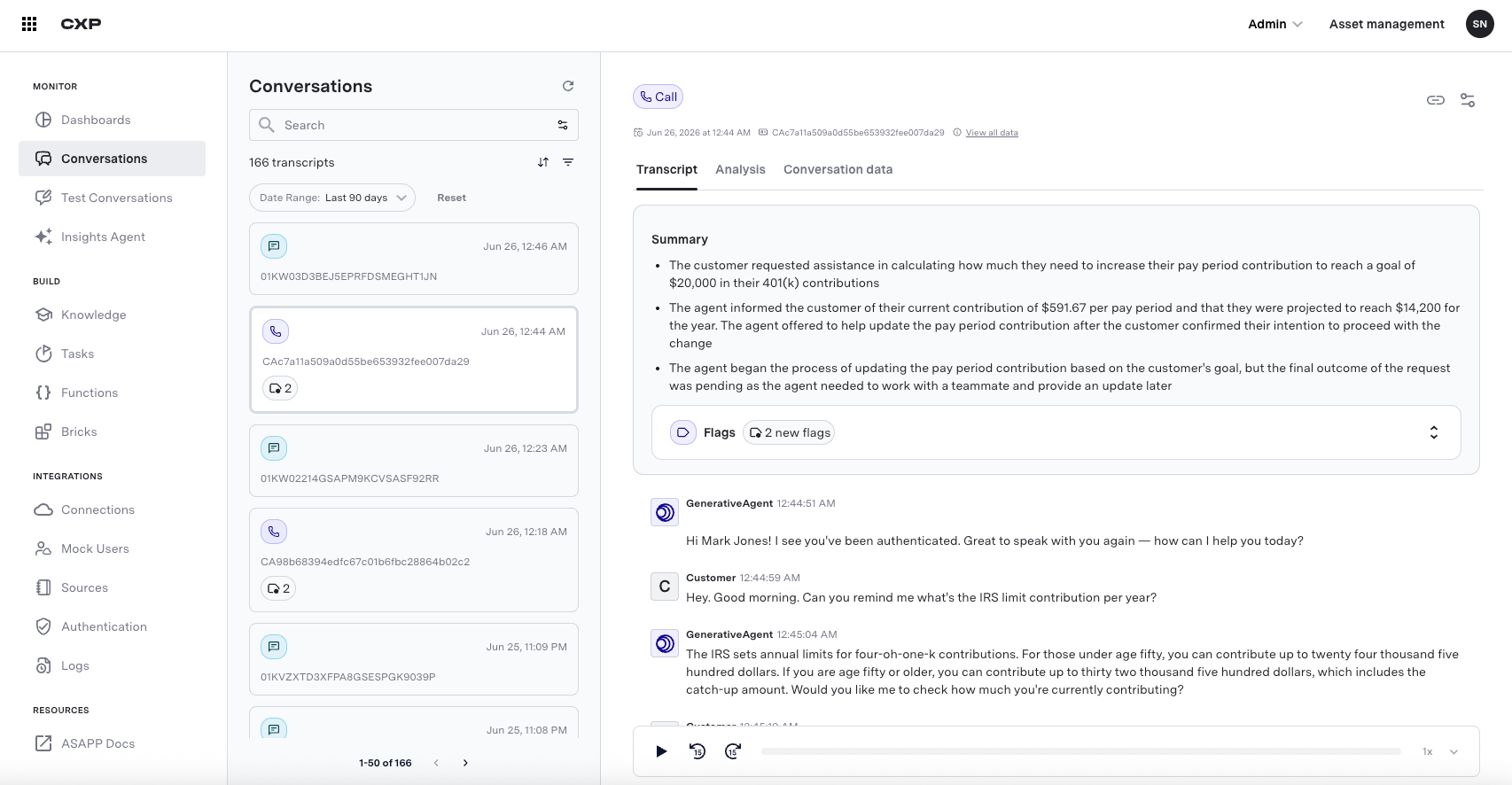
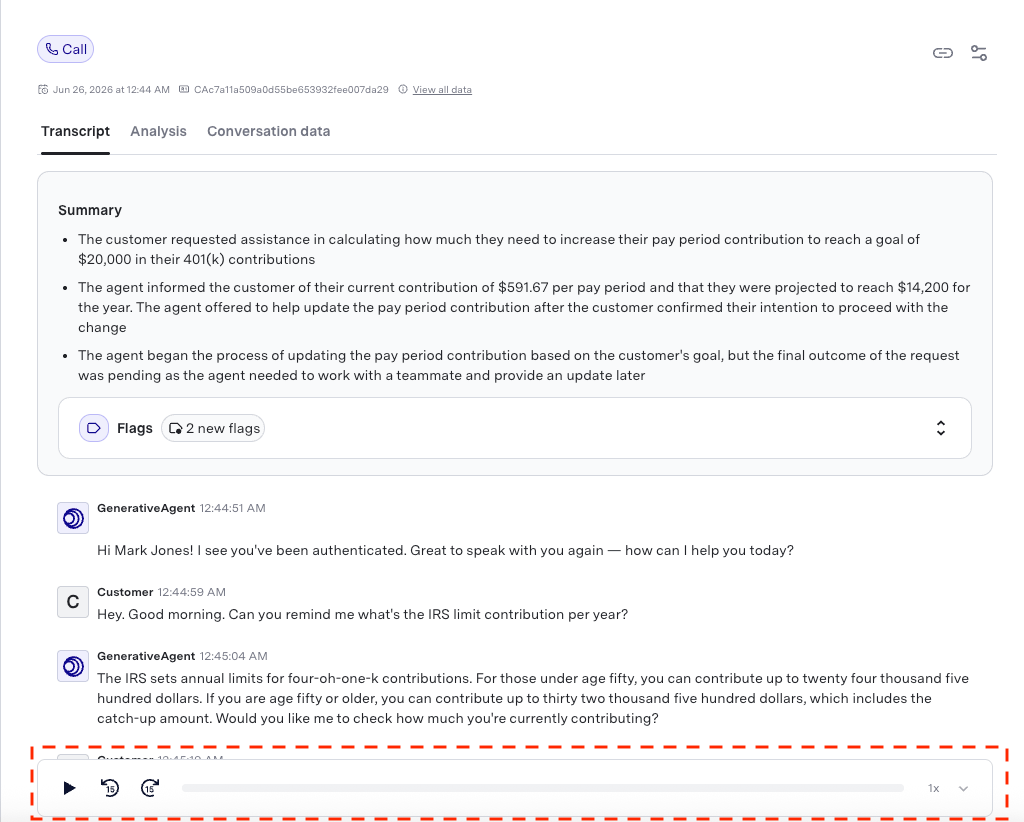
In the Conversations interface, you can find specific conversations using the search and filter options. You can either combine multiple search terms and filters to narrow down your results or use them individually to explore different aspects of your GenerativeAgent interactions. When you open a conversation, you can see the follow:- Full transcript of the interaction between the customer and GenerativeAgent.
- A brief summary of the conversation under Summary.
- Model actions that show how GenerativeAgent processed the conversation.
- Goals and their completion status under the Analysis tab.
- A button to copy the conversation link for sharing.
- Summary of the conversation under the Summary tab, which provides a brief overview of the interaction.
- Flags that indicate potential quality issues in the conversation under Flags in Summary.
- Structured data that was extracted from the conversation, which can be used for further analysis and insights under Conversation data.
You can access the “Summary” only if you have enabled AI Summary, and “Structured Data” if you have Configured Structured data extraction .
Search conversations
Use the search bar to find conversations containing specific words or phrases. Enclose terms in quotes for exact matches.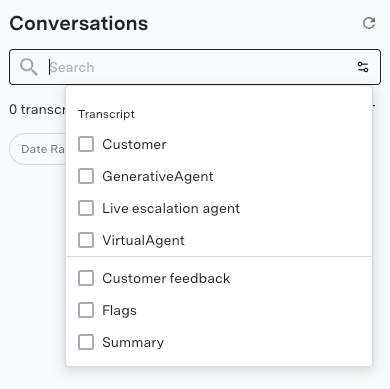
Filter conversations
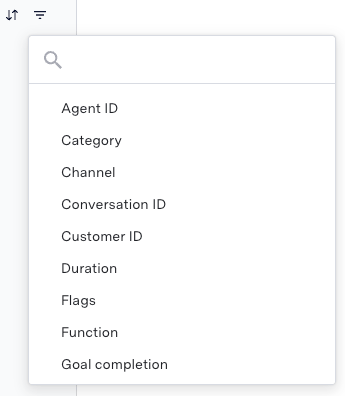
You can filter conversations using the following criteria:- Agent: Filter by the GenerativeAgent handling the conversation
- Agent ID: Search for conversations by a specific GenerativeAgent ID
- Category: Filter by categories assigned to monitor flags
- Channel: Filter by the communication channel (e.g., voice, chat)
- Conversation ID: Search for a specific conversation
- Conversation State: Filter escalated conversations by their Agent Desk state (e.g.,queued, assigned, transferred, or completed)
- Customer Authenticated: Filter by whether the customer was authenticated during the conversation
- Customer ID: Find conversations involving a specific customer
- Date range: Select specific time periods
- Duration: Filter by conversation length
- Escalation from GenerativeAgent: Find conversations that were escalated to a human agent
- First Intent: Filter conversations by the first intent detected at the start of the conversation
- Functions: Locate conversations that called particular APIs
- Flags: Find conversations flagged for quality issues
- Goal Completion: Filter conversations by whether customer goals were met
- HILA Consult: Find conversations that involved Human in the Loop assistance
- Internal Conversation ID: Search using internal conversation identifiers
- Language: Filter by the language used in the conversation
- Last Intent: Filter conversations by the last intent detected at the end of the conversatio
- Platform: Filter by the platform where the conversation initiated (e.g., Apple Messages for Business, WhatsApp, or other supported channels)
- Queue: Filter conversations that were routed to specific queues
- Structured Data: Filter conversations based on extracted structured data points
- System Transfers: Find conversations that involved system transfers
- Tags: Filter by tags assigned to conversations
- Task: Find conversations where specific tasks were performed
Finding Flagged conversations
Find both manually flagged conversations and those flagged by automated systems by using the “GenerativeAgent Flags” filter from the filter options.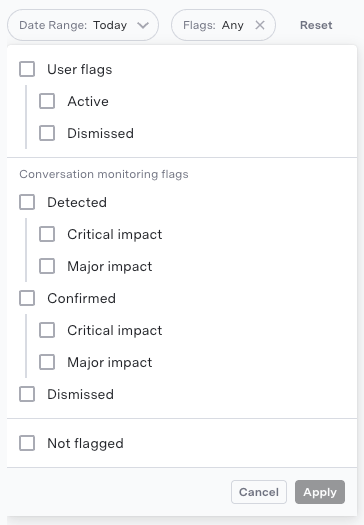
Review conversations
You can review the Conversation by playbacking it to understand the flow of the interaction and how GenerativeAgent responded to different customer inputs. Also, you can Manually annotate specific turns or messages that require attention to provide feedback, identify issues, or highlight important moments in the conversation.Playback a conversation
You can play back a conversation to listen to how GenerativeAgent interacted with the customer over time. Conversation Playback is useful for understanding the flow of the conversation and how GenerativeAgent responded to different customer inputs. The Conversation Playback enables you to:- Play, pause, and navigate through the conversation timeline.
- Skip forward or backward by 15 seconds.
- Play the conversation at different speeds such as 1x, 1.5x, and 2x.
Analyze conversations
Evaluators analyze the quality of conversations, goal completion, and other aspects of GenerativeAgent’s performance. Each evaluator has its own page with full instructions.Manually annotate a conversation
Add manual annotations to flag specific turns that require attention, add comments, refine automated flags, and classify issues with tags. Find manually flagged conversations using the appropriate filters. See Manual Annotation for how to add and manage annotations.Goal Completion
Evaluate whether customer goals, such as resolving an issue or completing a transaction, were achieved during a conversation. Use the “Goal Status” and “Conversation Status” filters to narrow down conversations, then review the goals and their completion status in the Analysis section. See Goal Completion for detailed instructions on how to use this evaluator.Conversation Monitoring
Quality evaluators assess each turn for adherence to configured tasks and knowledge, then flag conversations and highlight the problematic utterances with a rationale. Find system flagged conversations using the appropriate filters, then review them in the Flags section under Summary. See Conversation Monitoring for detailed instructions on how to use this evaluator.Quality Reports (ASAPP Score)
Every conversation is automatically scored against a standardized rubric across six dimensions, including information accuracy, context retention, and goal completion. A conversation passes if it scores 3.5 or above. Anything lower is flagged for review. Scores roll up into a daily report showing the ASAPP Score, pass/fail rate, and the low-scoring conversations to prioritize. See Quality Reports for the scoring dimensions and how the score is calculated.Analyze Model Actions
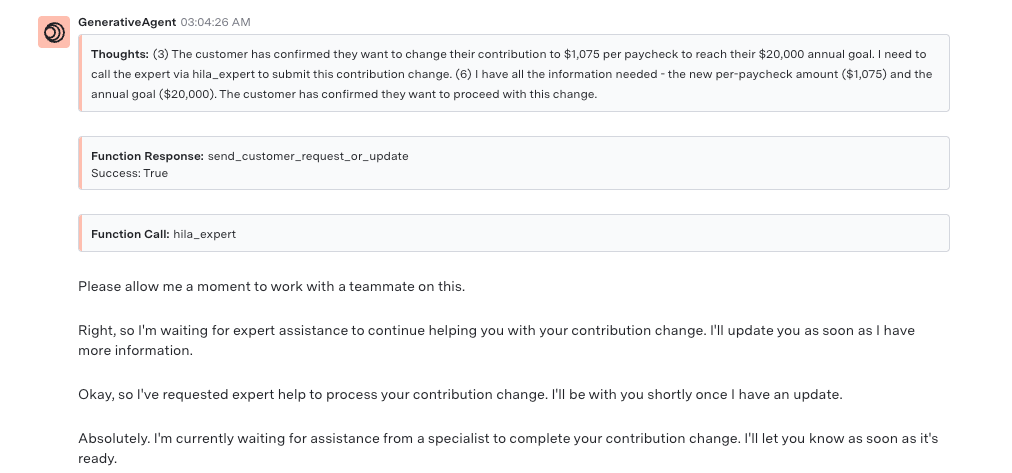
Once you have found a conversation, you can see exactly how GenerativeAgent makes decisions by viewing its internal reasoning process. Model actions are the input, knowledge, api calls, reasoning, and output of GenerativeAgent’s model while handling the customer interaction. The information in the model actions can drive how you update the configuration of your tasks and functions. When looking at a conversation, model actions are displayed inline with the conversation flow. This allows you to understand exactly when and why the AI made specific decisions during the interaction. To analyze model actions:- Open a conversation transcript
- In the top right corner, click Display Settings
-
Enable “Show All Actions” to display all model actions or enable a specific or multiple model action to filter the model actions displayed in the conversation transcript.
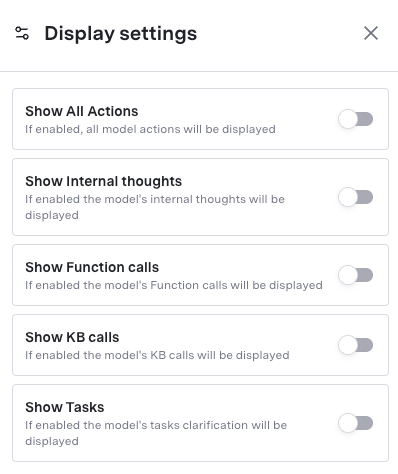
- View the AI’s reasoning process inline with the conversation, showing the chronological flow of decisions
-
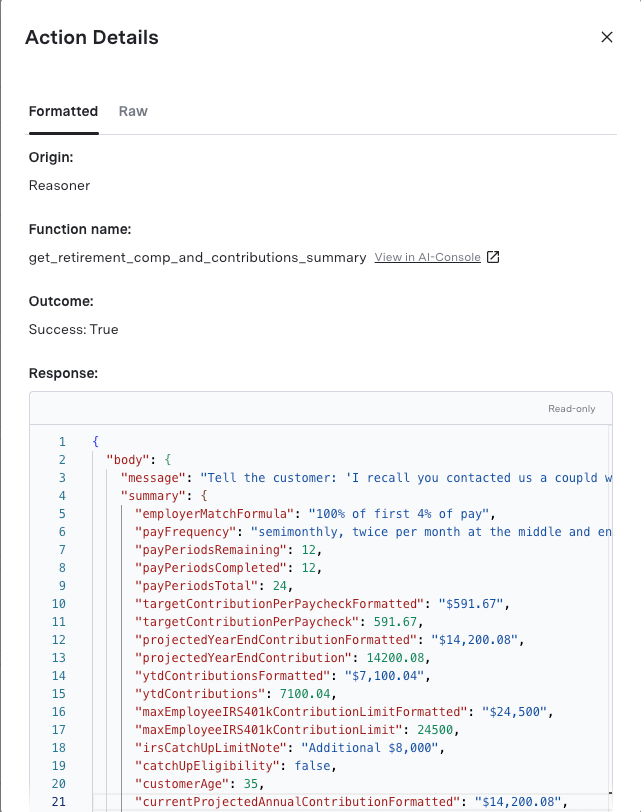
Click any model action to see detailed information.
This example shows a function response.
You can also see the “Raw” JSON interaction between GenerativeAgent and the function.
Model actions categories
Model actions are categorized into the following:When enabling a model action category, there may be multiple model actions with the same category that will be displayed. e.g. enabling Functions will show both a “Function Call” for the request and a “Function Response” for the response.
Authentication
Authentication
Actions occur when GenerativeAgent needs authentication data to call an API. Only used for API Connections that require client data.
Confirmation requests
Confirmation requests
Actions occur when GenerativeAgent needs to confirm an action with the customer.
Functions
Functions
Actions that occur when GenerativeAgent calls a function to handle the customer interaction.The model actions will show:
- The function name
- Input parameters
- Output
Errors
Errors
Actions occur when GenerativeAgent encounters an error.
HILA
HILA
Actions occur when GenerativeAgent needs consultation from a human agent as part of Human in the Loop.
Input variables
Input variables
The input variables that GenerativeAgent uses to call a function.
Knowledge
Knowledge
The Knowledgebase articles that GenerativeAgent was given to answer the customer’s question.
Out-of-scope Customer Message
Out-of-scope Customer Message
This occurs when GenerativeAgent determines that the customer’s question is out of scope for the current task.
Tasks
Tasks
The task that GenerativeAgent is entering or changing into in order to handle the customer interaction.
Thoughts
Thoughts
GenerativeAgent’s internal thoughts and reasoning process.
Transfer to agent
Transfer to agent
This occurs when GenerativeAgent performs a transfer to agent to escalate the conversation to a human agent.
Unsafe Customer Input
Unsafe Customer Input
This occurs when GenerativeAgent determines that the customer’s input is unsafe.
Output Safety Response
Output Safety Response
This occurs when the system detects an unsafe message from GenerativeAgent.
System Transfer
System Transfer
This occurs when GenerativeAgent transfers conversation control to an external system using a System Transfer function.
System Message
System Message
A system-generated instruction that provides essential context to the GenerativeAgent and serves as a trigger for various types of responses including:
- Reasoning-based responses
- Safety check validations
- Predefined messages (e.g., welcome prompts)
Share a conversation
You can share a conversation with others by clicking the “Copy Link” button when viewing a conversation.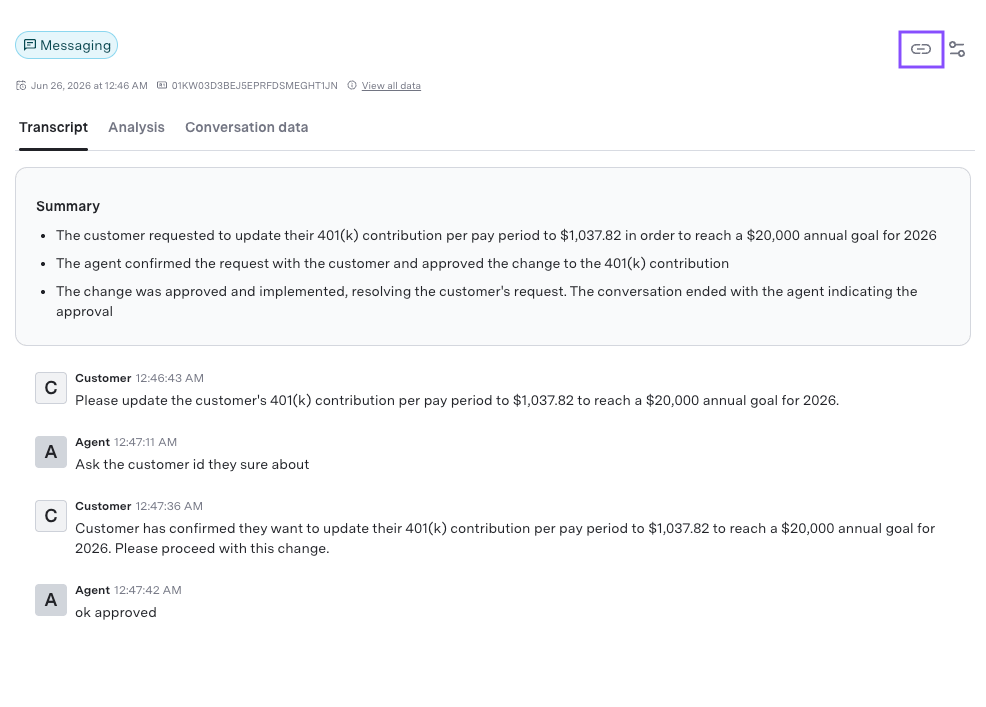
Next Steps: Explore Evaluators
Evaluators help you review and analyze conversations based on specific quality metrics. You can use evaluators to have an in-depth analysis of GenerativeAgent’s performance.Manual Annotation
Manually annotate conversations to provide feedback and identify quality issues.
Goal Completion
Evaluate whether customer goals were successfully achieved during conversations.
Conversation Monitoring
Monitor and review conversations for compliance and quality assurance.
Quality Reports
Monitor and improve GenerativeAgent quality with an automated score for every conversation.