

How it works
To help understand how intent identification works, let’s use an example conversation:Agent: Hello, thank you for contacting XYZ Insurance. How can I assist you today?AI Summary analyzes the conversation, focusing primarily on the initial exchanges, to determine the customer’s main reason for contact. This is represented by the
Customer: Hi, I want to check the status of my payout for my claim.
Agent: Sure, can you please provide me with the claim number?
Customer: It’s H123456789.
Agent: Thank you. Could you also provide the last 4 digits of your account number?
Customer: 6789
Agent: Let me check the details for you. One moment, please.
Agent: I see that your claim was approved on June 10, 2024, for $5000. The payout has been processed.
Customer: Great! When will I receive the money?
Agent: The payout will be credited to your account within 3-5 business days.
Customer: Perfect, thank you so much for your help.
Agent: You’re welcome! Is there anything else I can assist you with?
Customer: No, that’s all. Have a nice day.
Agent: You too. Goodbye!
name of the intent and the code, a machine readable identifier for that intent.
In this case, the intent might be identified as:
Generate an Intent
You can generate an Intent either by using API or the Intent Tooling in the AI Console. To generate an intent, you need to provide the conversation transcript to ASAPP.- Intent Tooling UI
- Using API
You can use the Intent Tooling in the AI Console to generate intents for your conversations. This tool allows you to upload conversation transcripts and receive generated intents in a user-friendly interface.The user interface provides lets you manualy add an intent as well as import it from a csv or pdf file.
Manual Intent Creation
Manual Intent Creation
- Go to the AI Console and navigate to the Intent section, click on “Add”, then select “Create Intent”.
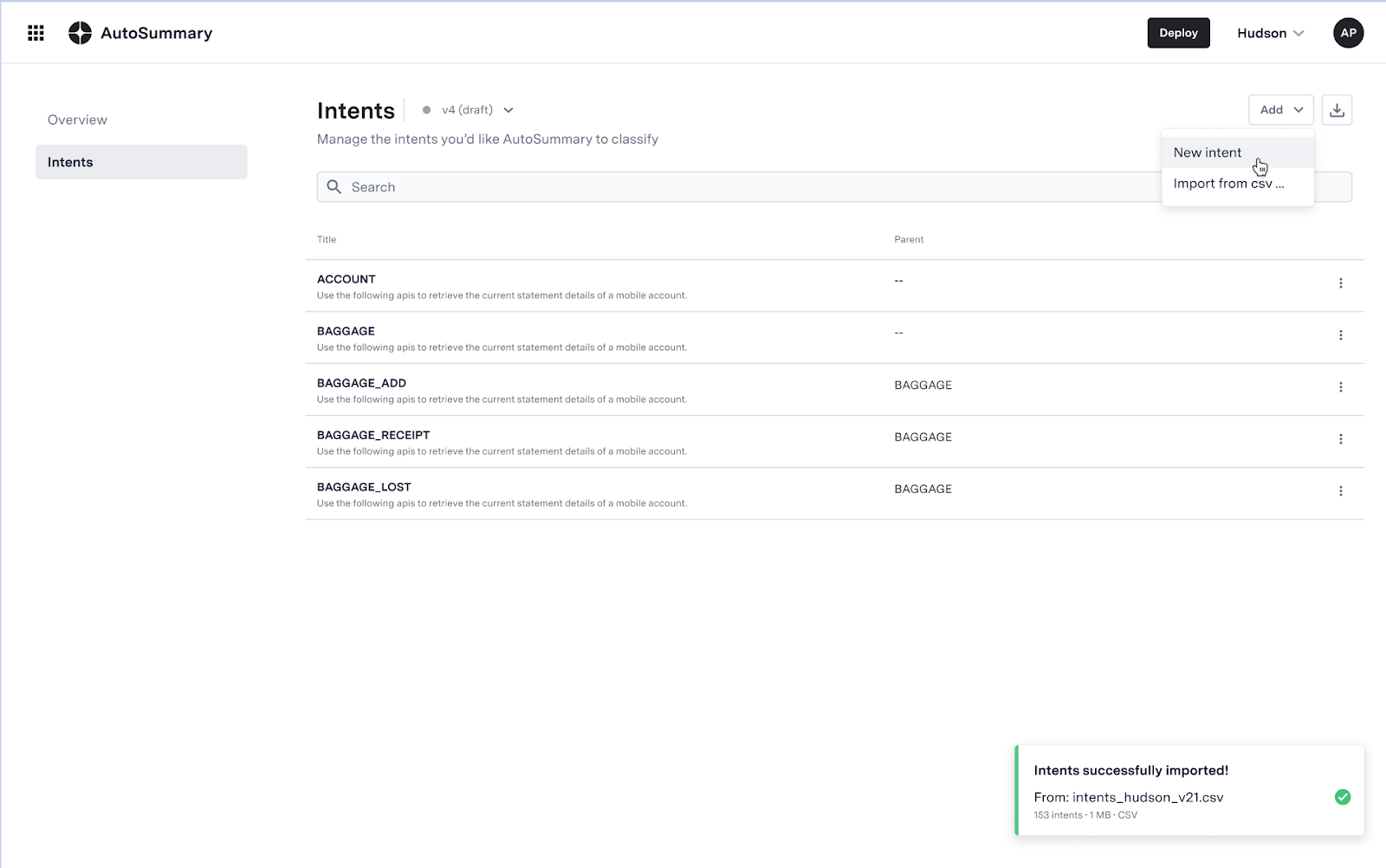
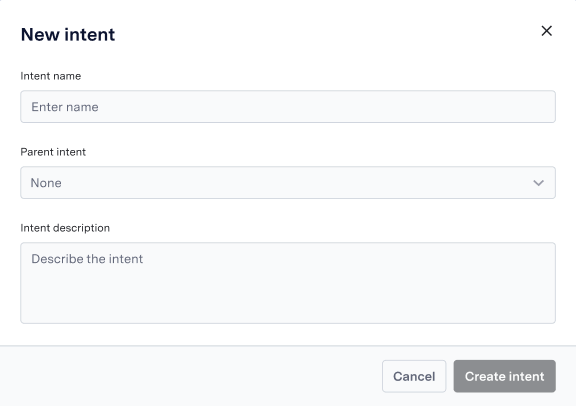
- Add intent details such as the intent label, parent intent, and description. Refer to sample file in case any further clarifications
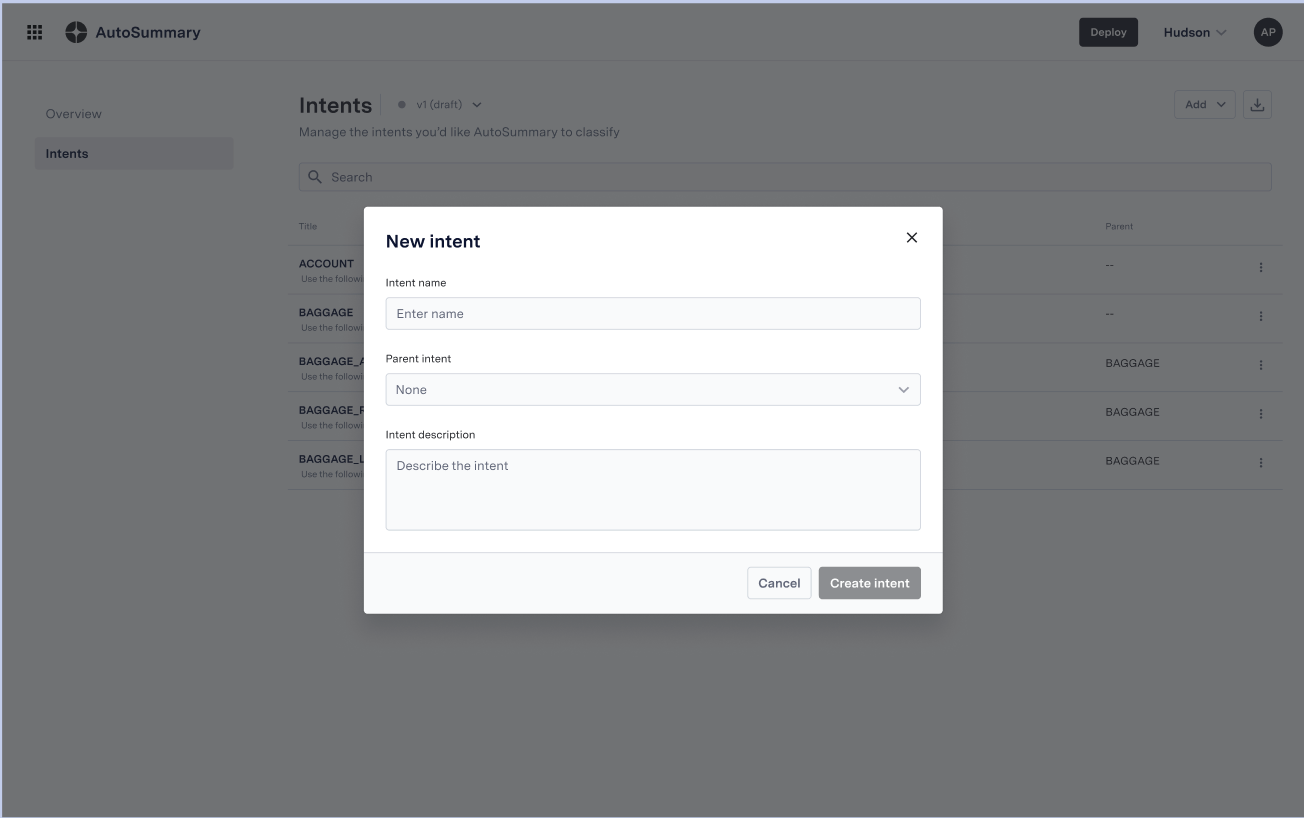
- Click on create intent to add the intent to the hierarchy
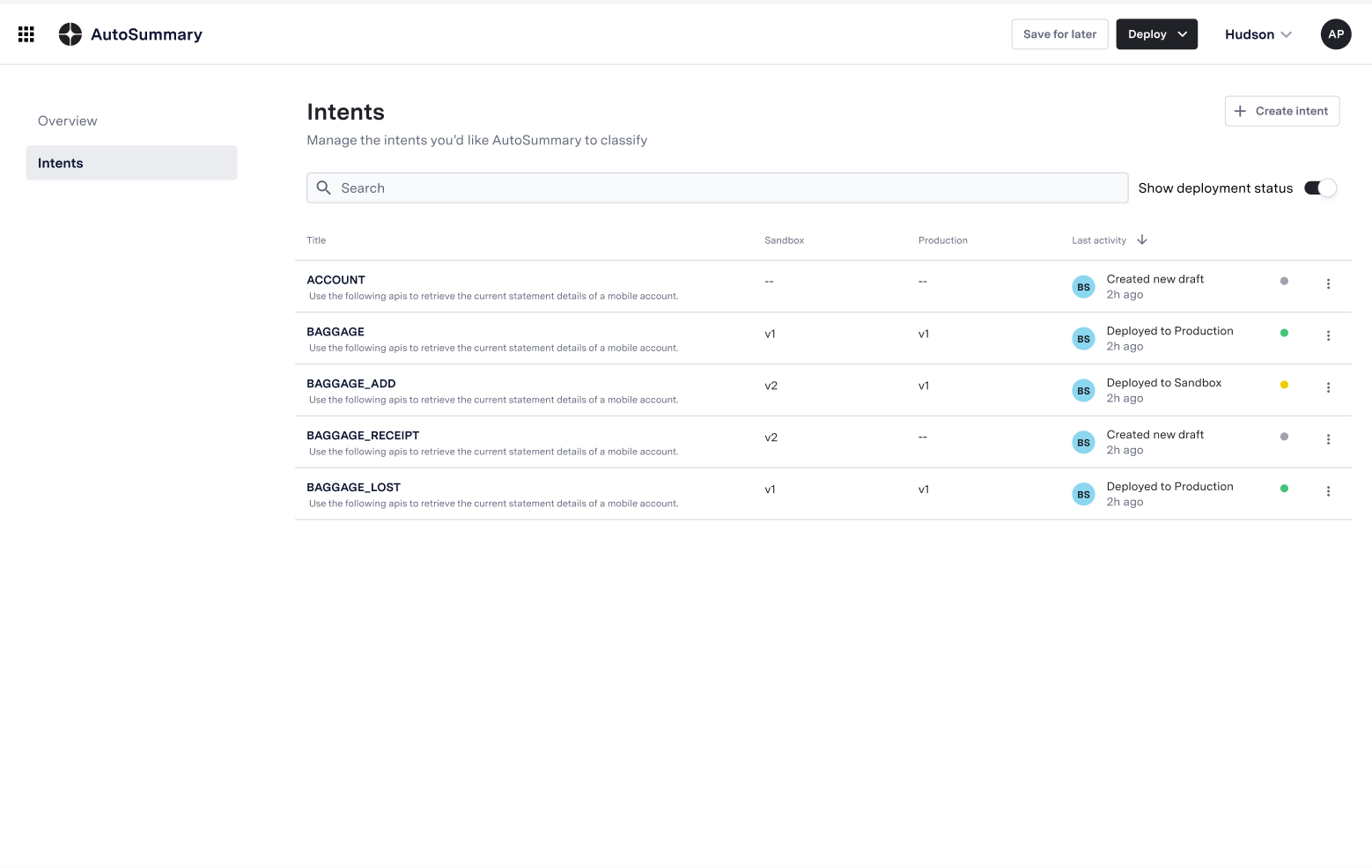
- Review and verify your created intent
Intent Creation via File Upload
Intent Creation via File Upload
- Go to the AI Console and navigate to the Intent section, click on “Add”, then select “Import from CSV…”.
- Select the desired file and upload the file
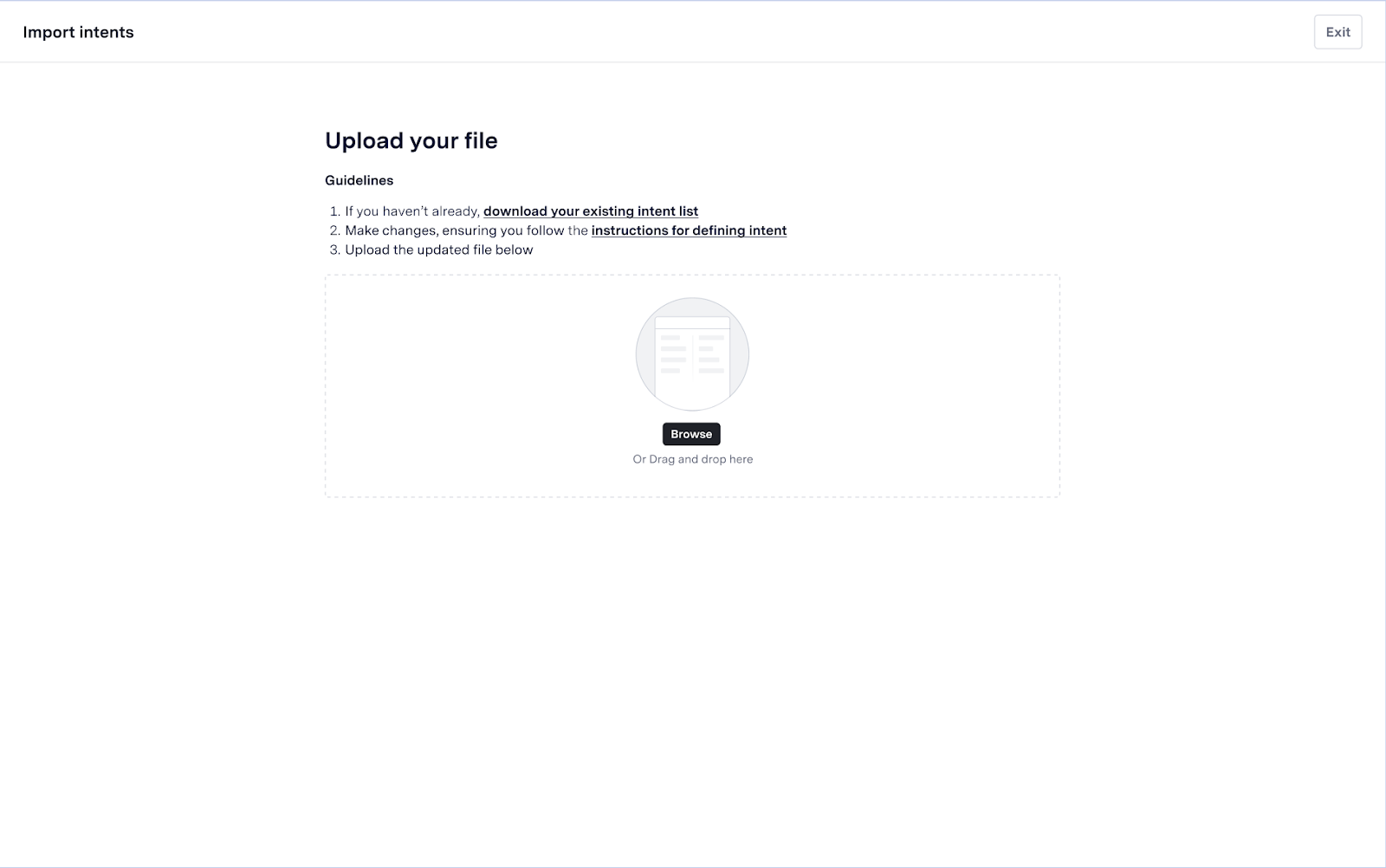
- Review selected file before deploying the intents
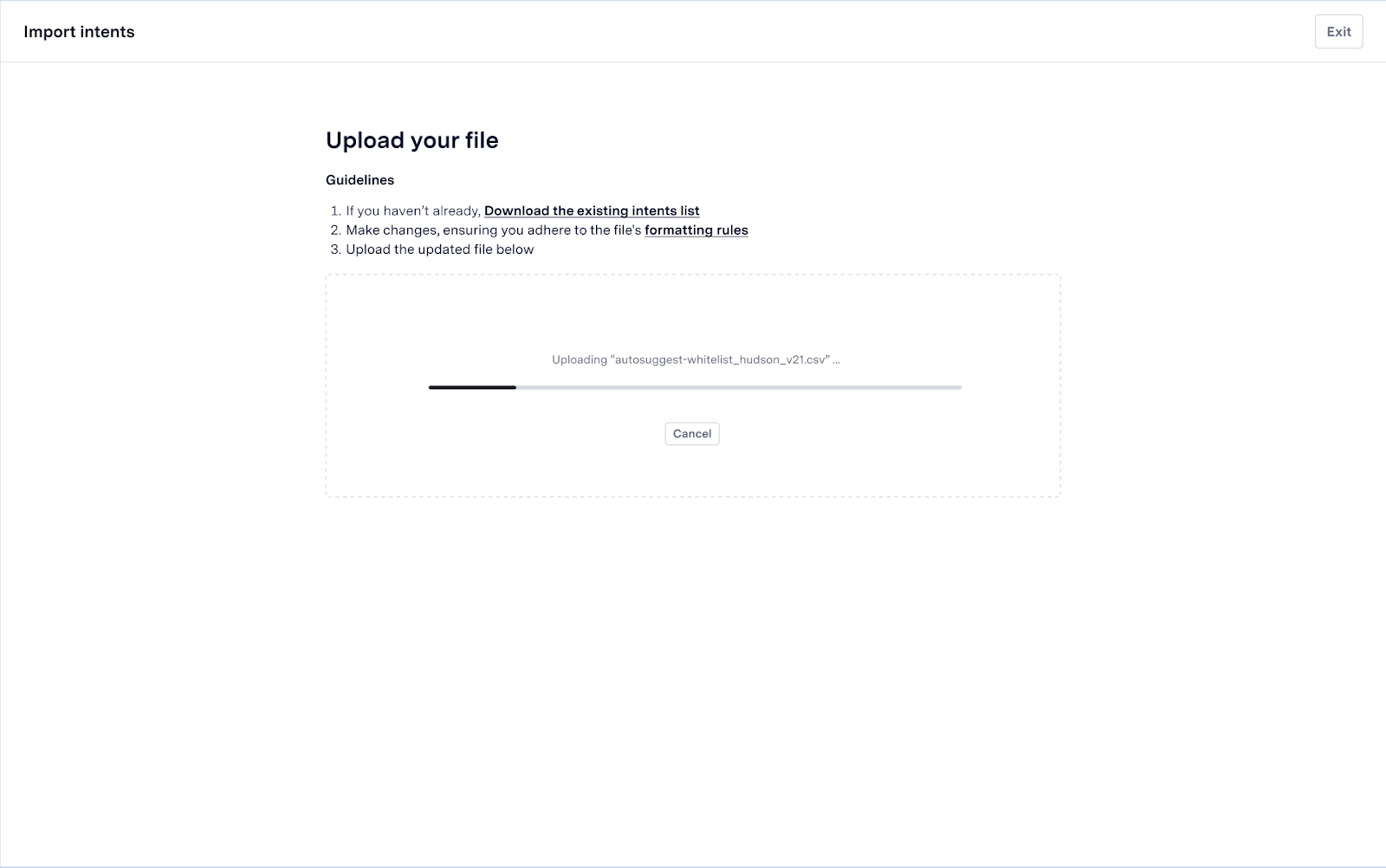
- Review and verify your uploaded intents
Customization
AI Summary provides extensive customization options for intent identification to meet your specific needs. Whether you want to use industry-specific intents or adhere to your company’s unique categorization, this feature provides the flexibility to tailor intents in a way that aligns with your operational goals. To customize your intents, you can use the Self-Service Configuration tool in ASAPP’s AI Console. This tool allows you to:- Upload, create, or modify intent labels
- Expand intent classifications by adding as many intents as needed
- Configure the system to align with your specific operational requirements