> ## Documentation Index
> Fetch the complete documentation index at: https://docs.asapp.com/llms.txt
> Use this file to discover all available pages before exploring further.
# Scope and Safety Tuning
> Learn how to customize GenerativeAgent's scope and safety guardrails
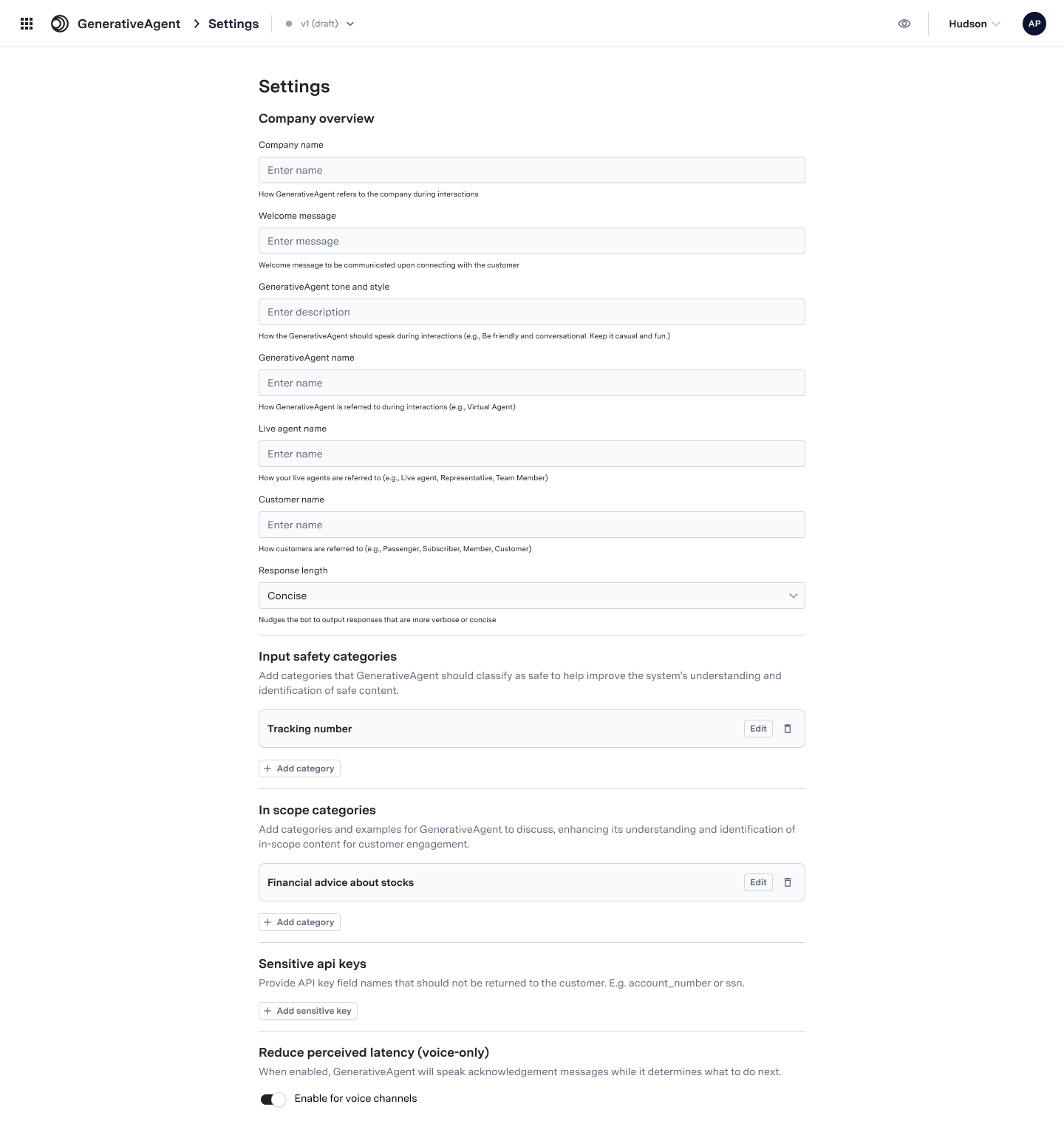
GenerativeAgent includes default safety and scope guardrails to keep conversations aligned with business needs and to ensure GenerativeAgent engages only in appropriate topics.
These tools allow you to:
* Define custom categories for what's considered "in-scope"
* Configure input safety categories for allowed customer messages
* Maintain default safety protections while adding organization-specific allowances
 ## Customizing Scope and Safety Settings
Scope and safety controls are available in the main Settings page of GenerativeAgent. After making any changes to these settings, test them using the Previewer before deploying to production.
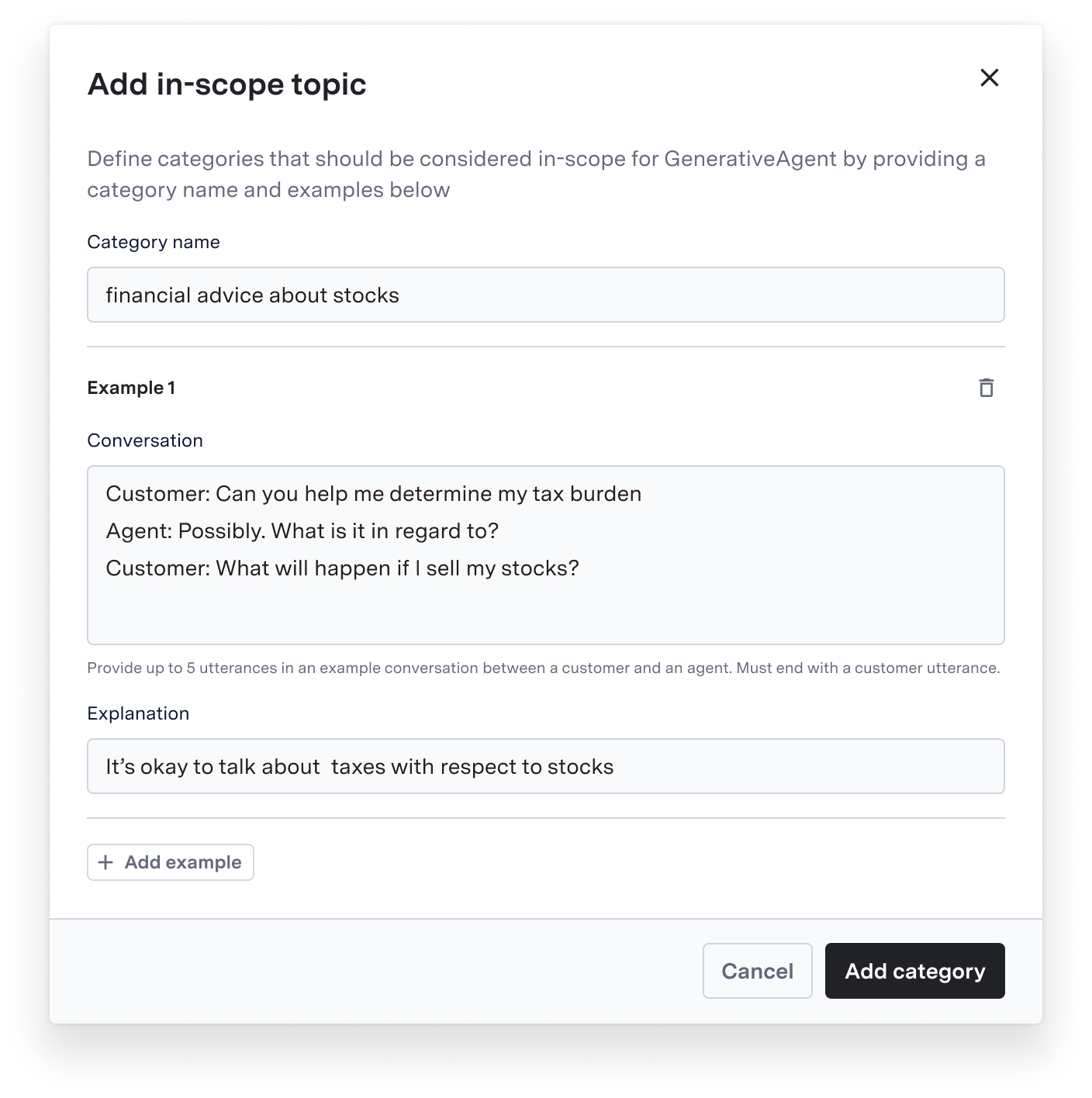
To define valid topics for GenerativeAgent:
1. Navigate to Settings > In-Scope Categories
2. Click "Add Category"
3. Enter a category name
4. Provide specific examples of acceptable topics/requests
5. Save your changes
The default safety and scope guardrails remain active even when you add custom categories. Your configurations help customize permissible interactions while maintaining core safety features.
If scope settings seem too restrictive, you can add new categories or expand existing ones. Always test changes in the Previewer before deployment.
## Customizing Scope and Safety Settings
Scope and safety controls are available in the main Settings page of GenerativeAgent. After making any changes to these settings, test them using the Previewer before deploying to production.
To define valid topics for GenerativeAgent:
1. Navigate to Settings > In-Scope Categories
2. Click "Add Category"
3. Enter a category name
4. Provide specific examples of acceptable topics/requests
5. Save your changes
The default safety and scope guardrails remain active even when you add custom categories. Your configurations help customize permissible interactions while maintaining core safety features.
If scope settings seem too restrictive, you can add new categories or expand existing ones. Always test changes in the Previewer before deployment.
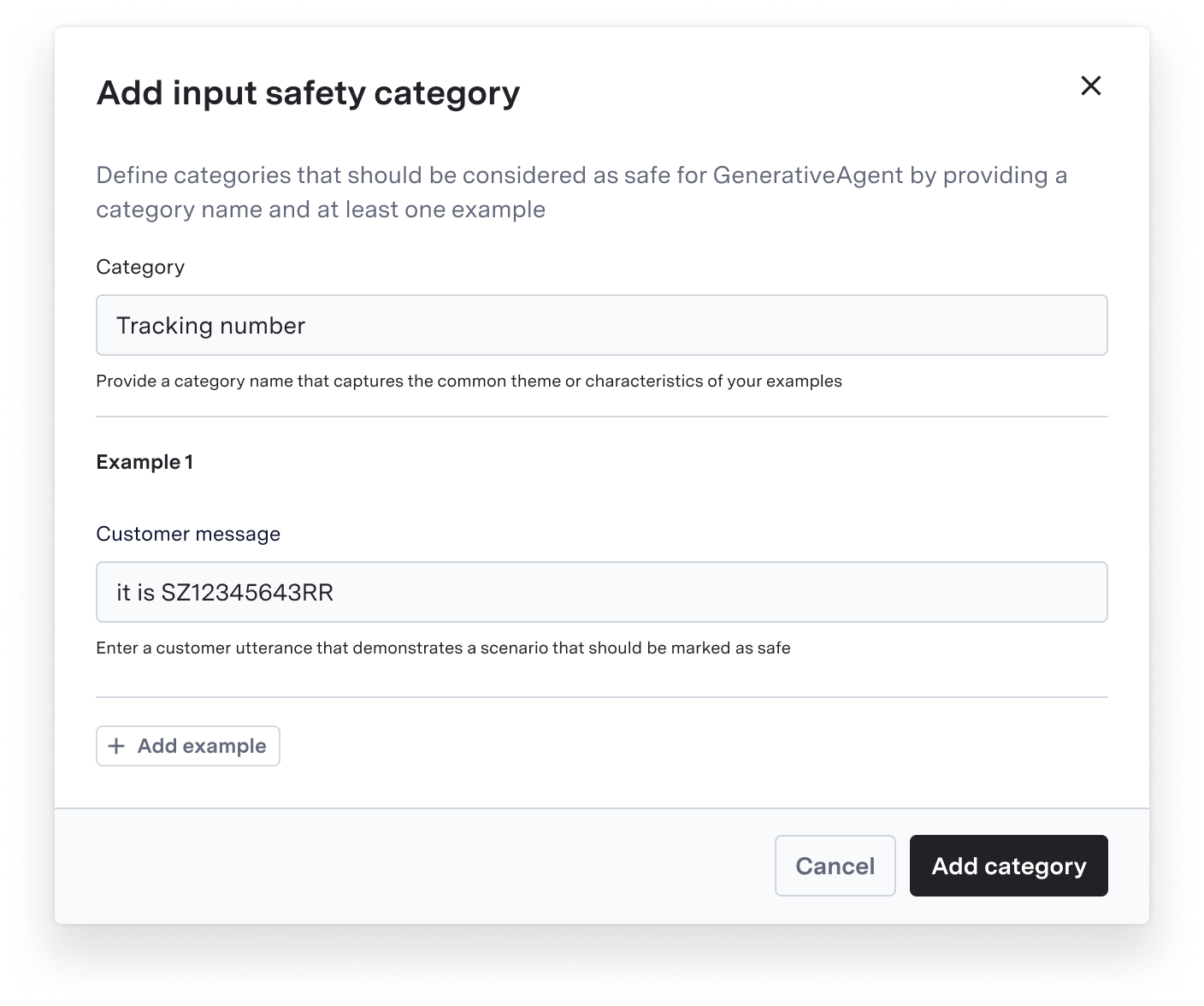
 To specify allowed customer message types:
1. Go to Settings > Input Safety Categories
2. Click "Add Category"
3. Define the category name
4. Add example messages that should be allowed
5. Include context explaining why these inputs are safe
6. Save your configuration
To specify allowed customer message types:
1. Go to Settings > Input Safety Categories
2. Click "Add Category"
3. Define the category name
4. Add example messages that should be allowed
5. Include context explaining why these inputs are safe
6. Save your configuration
 ### Safety Context
Input safety categories require explanations to provide context for why you deem certain inputs safe. This helps GenerativeAgent accurately apply exceptions relevant to your specific needs while maintaining overall safety standards.
## Next Steps
After configuring scope and safety settings, you may want to explore:
### Safety Context
Input safety categories require explanations to provide context for why you deem certain inputs safe. This helps GenerativeAgent accurately apply exceptions relevant to your specific needs while maintaining overall safety standards.
## Next Steps
After configuring scope and safety settings, you may want to explore: